FORMS
Web forms are “money pages”.
Online stores sell products through an order form.
Online services use payment forms for provided services and feedback forms.
There are many types of forms.
Clients are highly interested in creating and optimizing forms, and developers often work with them.
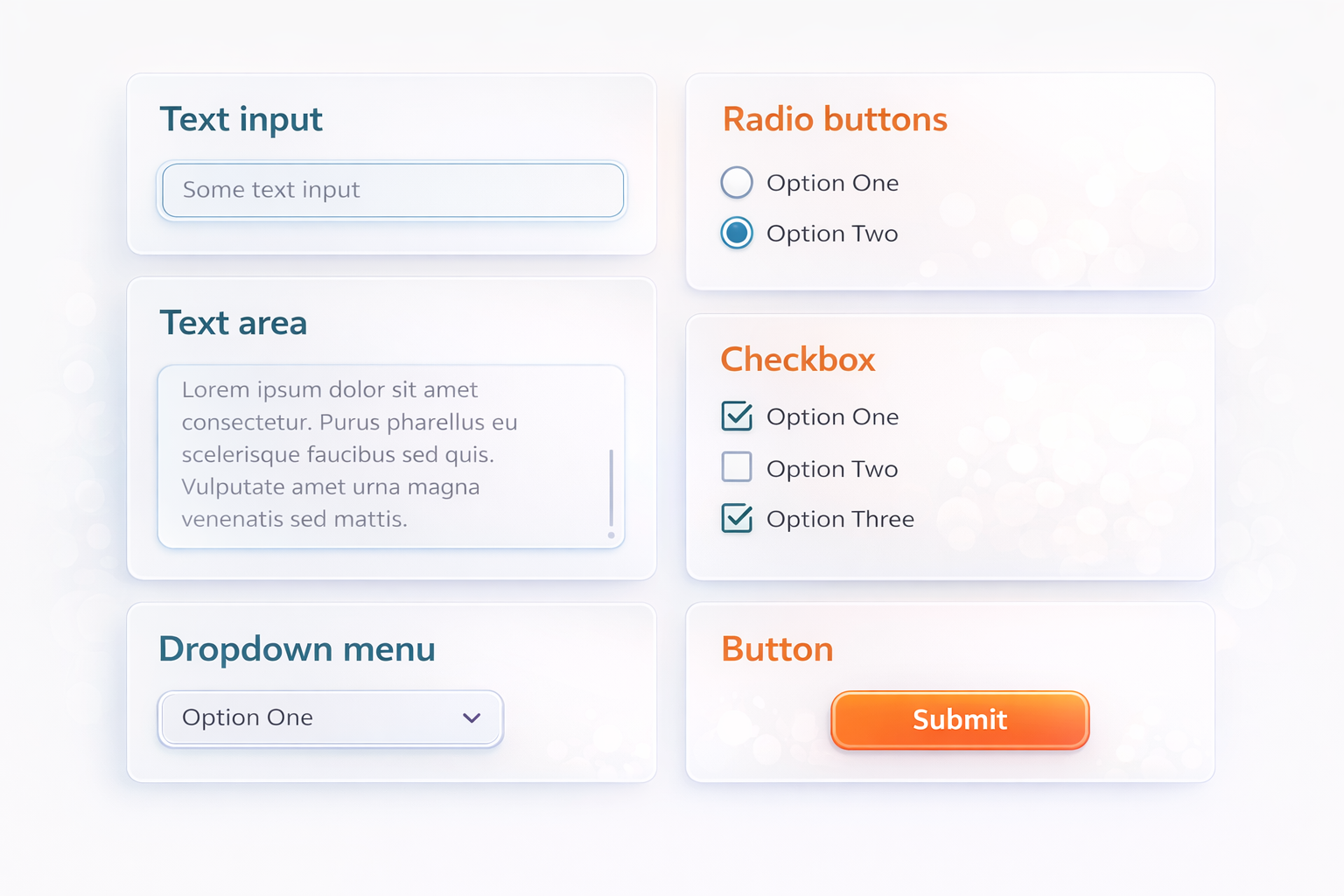
HTML Form
Forms on a web page are the equivalent of a paper form, questionnaire, or template.
They allow you to collect information from visitors to a web page.
Mailing lists, contact details, user profiles, login and registration, blog comments - all of these are implemented using forms and their elements.
Companies measure the success of their website by the effectiveness of its forms, because forms help answer questions such as:
- “How many leads did our website send to the sales department?”
- “How many people signed up for our product last week?”
That is why forms are constantly being refactored and improved.
Two Parts of a Form
A functional HTML form consists of two parts:
- The user interface (the page frontend).
- The server (the page backend).
The first is the appearance of the form: markup and styling.
The second is the code that processes the entered data: validation, data storage, sending email, and so on.
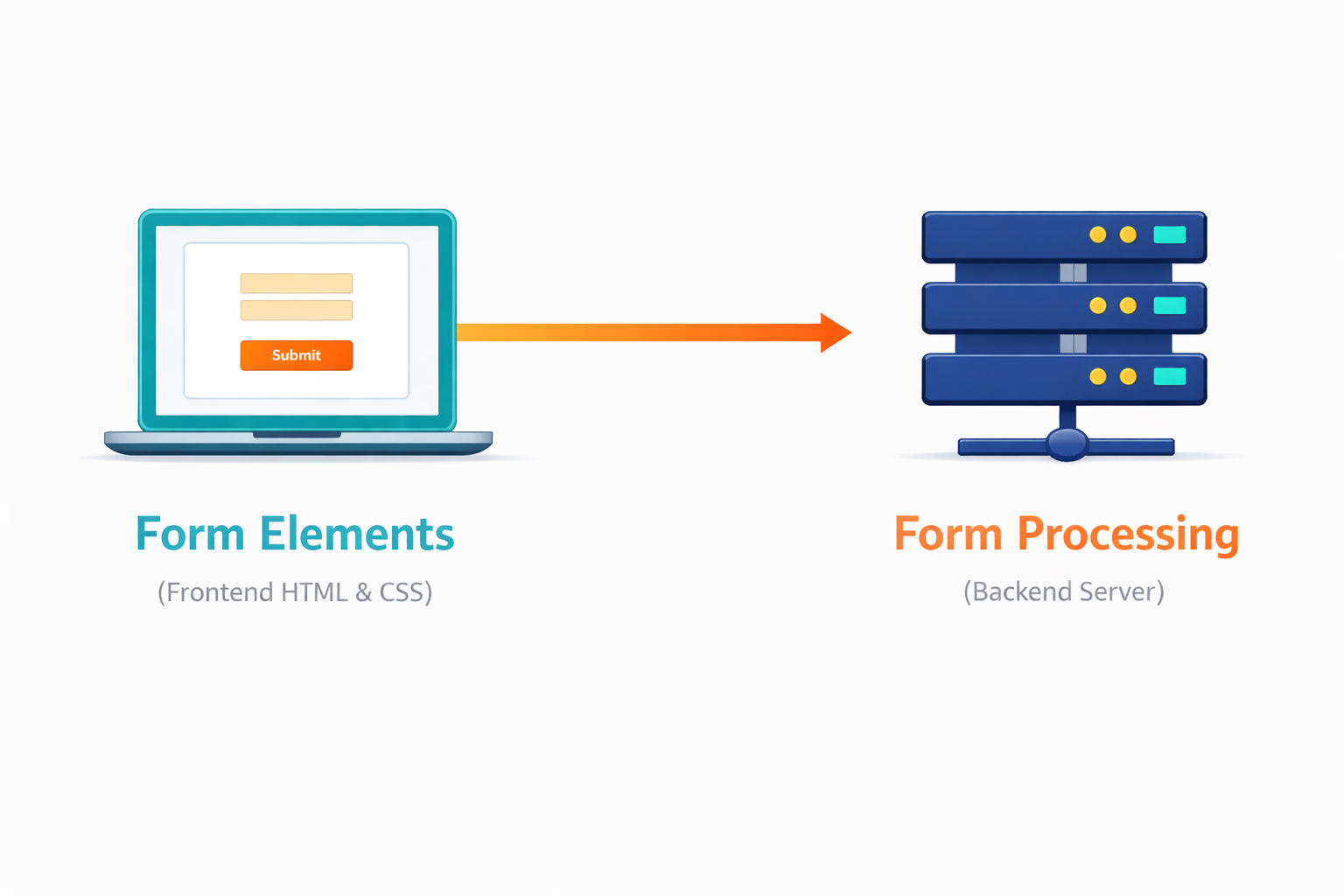
For now, our task is to learn how to create the interface, that is, how to mark up and style form elements.
Learning how to process data is outside the scope of a layout course and requires knowledge of browser and server-side programming languages such as JavaScript, Node.js, Python, PHP, and others.
The form Element
The form element is a section of an HTML document that contains interactive controls that allow the user to submit information to a web server.
Semantically, it is a container for a group of related elements.
For example, a feedback form, registration form, or payment form in an online store.
Each of these interface components consists of a group of interactive elements grouped inside a form.
<form name="feedback_form" autocomplete="off" novalidate>
  <!-- Form elements -->
</form>
Useful Optional Attributes
The form element has no required attributes.
Here are a few useful optional ones:
name- the name of the form, which must be unique on the current web page. It may contain English letters in any case, digits, underscores, and hyphens. Spaces are not allowed. It is used both on the server and on the client when working with the form.autocomplete- defines whether the browser may automatically fill in the values of all form elements. It has only two values:offandon.novalidate- a boolean attribute with no value. It tells the browser not to validate the entered data when submitting the form. If the attribute is not specified, the browser’s built-in validation is performed.
Visual Idea
form
┌──────────────────────────┐
│ label                    │
│ input                    │
│ label                    │
│ input                    │
│ submit button            │
└──────────────────────────┘
Creating a form
Here is the basic code for the form above
<div>
  <p>Creating a form</p>

  <form class="form" name="issue_report_form" autocomplete="off">
    <!-- Form elements -->
  </form>

  <style>
    .form {
      max-width: 300px;
      display: flex;
      flex-direction: column;
      gap: 12px;
      border: 3px solid #f2bcbc;
      padding: 8px;
      box-sizing: border-box;
    }
  </style>
</div>
Submitting a Form
By clicking <button type="submit"> or pressing the Enter key in any form field, we can submit the form.
These actions also cause the current browser tab to refresh.
This behavior is the normal default behavior, which can be changed using the JavaScript programming language.
<form>
  <!-- Form elements -->

  <button type="submit">Submit feedback</button>
</form>
Button Styling
A button does not inherit many text styling properties.
The main ones are the font family and the text color.
It is recommended to set a global style for the button tag.
Other properties and their values should be taken from the design mockup.
button {
  font-family: inherit;
  color: currentColor;
}
Exercise 2
Place image 2 here later.
Paste embed code for Exercise 2 here later.
Short Summary
- Forms collect user data on a web page.
- The
formelement is a container for related interactive controls. - A real form has a frontend and a backend.
- In layout practice, we focus on the interface part.
- Forms are important because they often affect business results directly.
- Submitting usually happens with a submit button or the Enter key.
Creation a form with submit button
here is the code:
<div>
  <form class="form" name="issue_report_form" autocomplete="off">
    <button class="form-button" type="submit">Submit an issue</button>

    <style>
      input,
      textarea,
      button {
        font-family: inherit;
        line-height: inherit;
      }

      .form {
        display: flex;
        flex-direction: column;
        gap: 12px;
        padding: 8px;
        border: 1px solid #212121;
        max-width: 300px;
      }

      .form-button {
        align-self: flex-start;
      }
    </style>
  </form>
</div>