how to make a modal window-instruction
-
Understanding the Structure of a Modal Window
First of all, it is very important to understand that the main content of this page is this text. In our case, the main content is the instruction explaining how to create a modal window.
Another important part is the modal overlay and the modal window. The modal overlay is a
div, and inside the modal overlay there is anotherdivcalledmodal. Thismodaldiv is our modal window.Now let’s explain the difference between the overlay and the modal window. Try to imagine the main text and the modal window on the screen. You can see the main text behind the modal window, so it may seem that the text is directly behind it, but this is only an illusion.
Behind the modal window, there is actually the modal overlay, which usually has some opacity. Sometimes the modal overlay has a different color, but a semi-transparent dark overlay is the most common choice.
So, it is very important to understand the order of the elements:
[ Top layer ] Modal window
[ Middle layer ] Modal overlay
[ Bottom layer ] Main contentDiagram:
Modal window
↓
Modal overlay
↓
Main content -
Creating the HTML Structure
Next, create the HTML structure for the modal window under the
</main>tag. First, create adivwith the classmodal-overlay. Then, inside it, create anotherdivwith the classmodal.<div class="modal-overlay"> <div class="modal"></div> </div>Inside the modal, we create a paragraph with text called
Modal content. Later, we will remove this text and paste the complete HTML code with all scripts into this paragraph.So, on the main page, we will have text explaining how to make a modal window, and inside the modal window, we will have the code visible in the browser that is used on this page.
It looks like this:
<div class="modal-overlay"> <div class="modal"> <p>Modal content</p> </div> </div> -
Styling the Modal Overlay
Now we need to style the
modal-overlay, so we must create some CSS code. You can write it in a CSS file or, like I do here, directly in the HTML file.The
modal-overlayshould be positioned properly, and for that we will useposition: fixed. A fixed position works relative to the viewport, so if we settop: 0andleft: 0, the overlay will start in the top-left corner of the screen.At the beginning, I will use
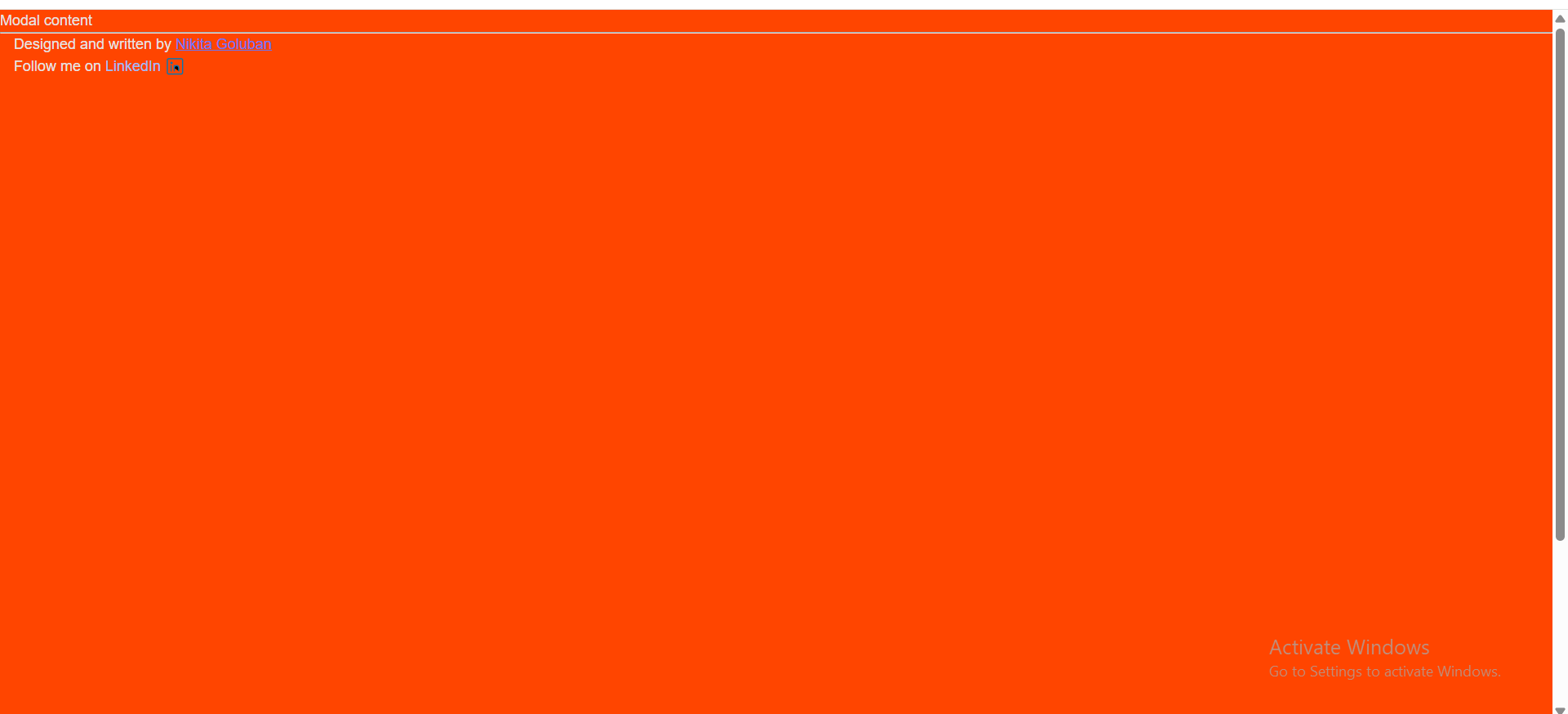
background-color: orangered. In this way, we can clearly see in the browser where the overlay is and how it looks.Now we need the
modal-overlayto cover the whole screen. We can do that withwidth: 100%andheight: 100%. After that, the modal overlay will cover the entire screen with the orangered color.We also need to set a high
z-index, for example999. It should always stay above the main content. Perhaps later we will create another element withposition: absolute, but the modal overlay should still appear on top.Here is the CSS code:
.modal-overlay {
    background-color: orangered;
    position: fixed;
    top: 0;
    left: 0;
    width: 100%;
    height: 100%;
    z-index: 999;
}
Here is screenshot
-
Positioning the Modal Window
Now we need to position the modal window. For this, we create CSS for
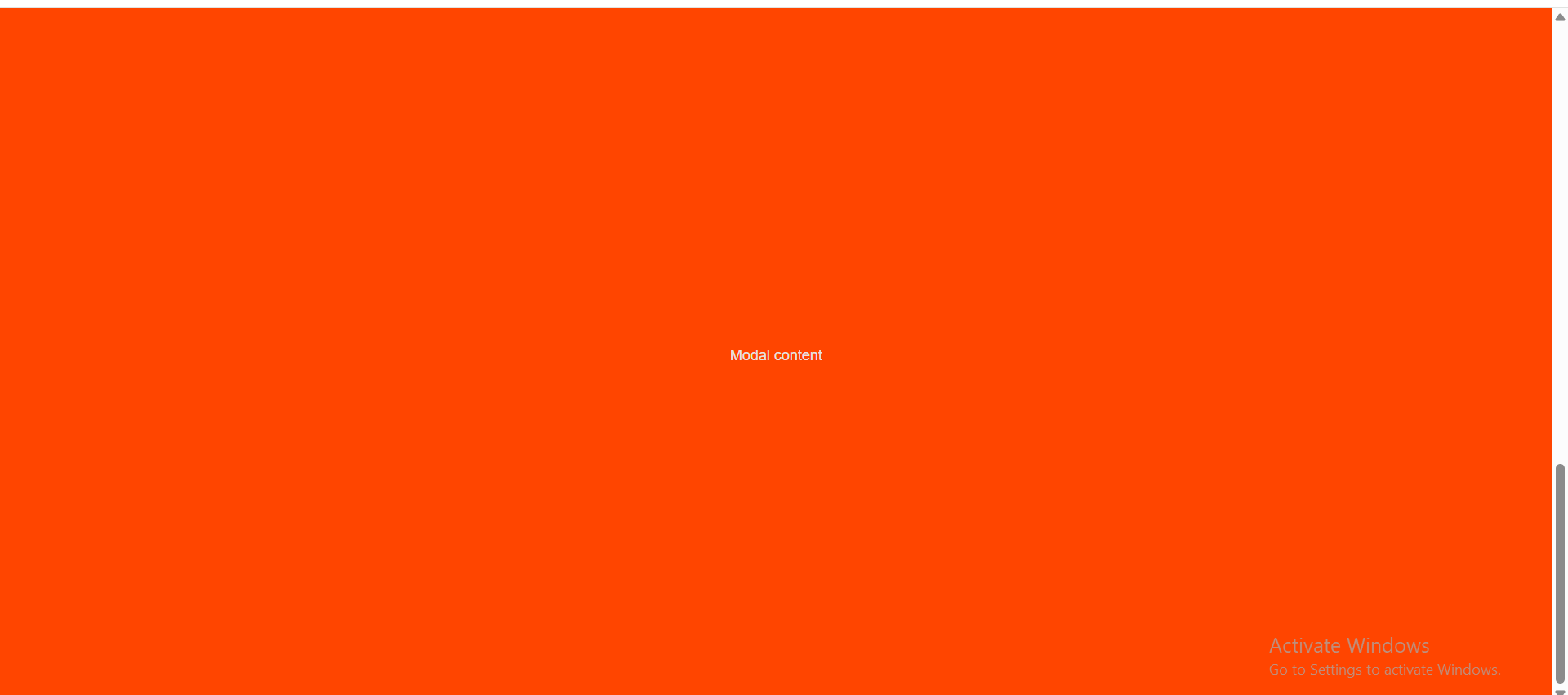
.modal. We want to place the window in the center of the screen, so we addjustify-content: centerandalign-items: centerto.modal-overlay. This makes the modal window appear in the center.We also need to add
display: flexto.modal-overlay, becausejustify-contentandalign-itemsonly work with flexbox.Here is the code:
.modal-overlay {
    background-color: orangered;
    position: fixed;
    top: 0;
    left: 0;
    width: 100%;
    height: 100%;
    z-index: 999;
    justify-content: center;
    align-items: center;
    display: flex;
}

}
Here is the screenshot
-
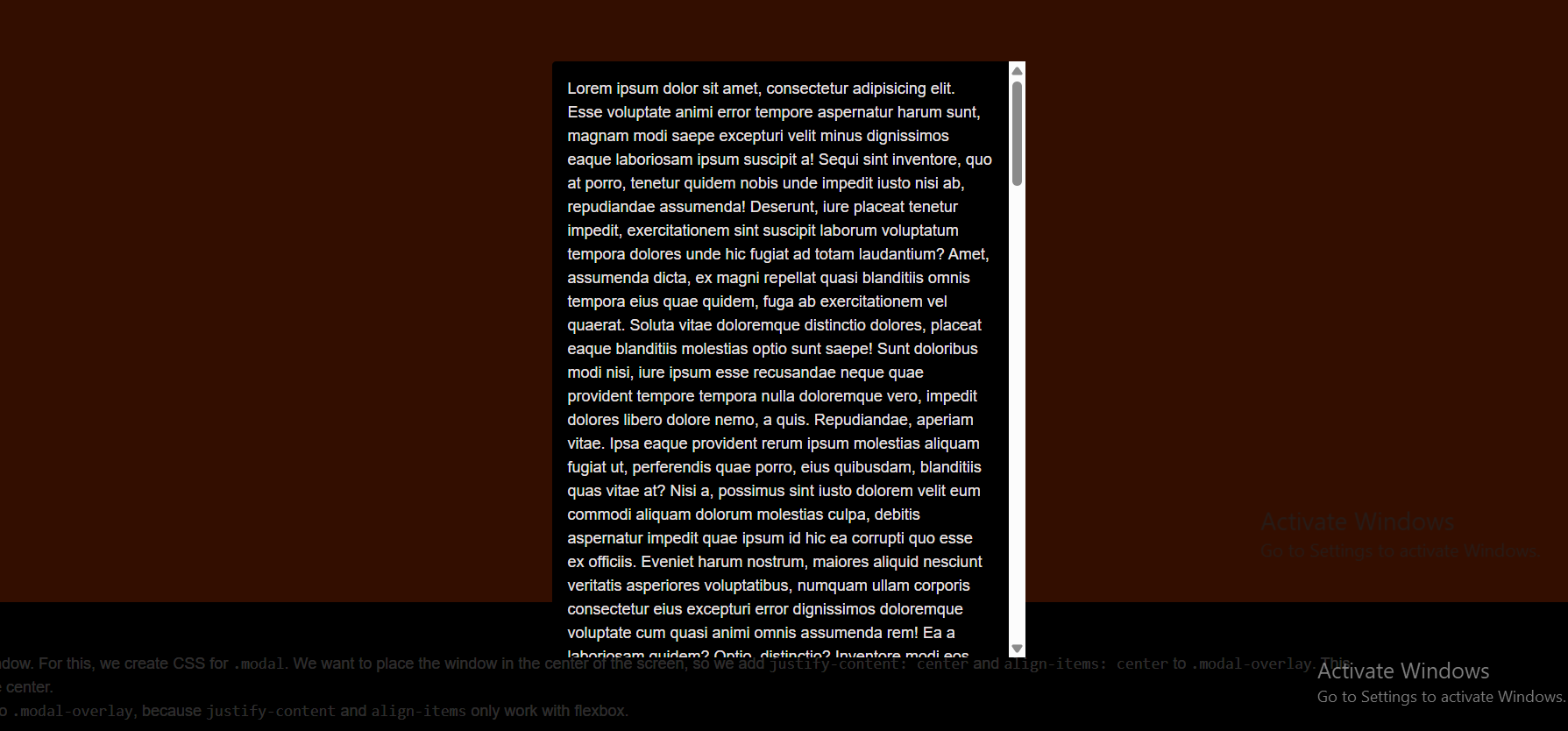
We can add some more styles to the modal window, for example
border-radius,padding, andbox-shadow. We also addmax-width: 480pxandmax-height: 80%so the text looks like it is inside a frame. We addoverflow-y: autoto make scrolling possible when there is a lot of text inside the modal. We can also change the overlay opacity to0.8and set the modal background color to black.Here is the code:
.modal-overlay {
    background-color: rgba(0, 0, 0, 0.8);
    position: fixed;
    top: 0;
    left: 0;
    width: 100%;
    height: 100%;
    z-index: 999;
    justify-content: center;
    align-items: center;
    display: flex;
}

.modal {
    border-radius: 4px;
    padding: 16px;
    box-shadow: 0px 2px 4px rgba(0, 0, 0, 0.3);
    max-width: 480px;
    max-height: 80%;
    overflow-y: auto;
    background-color: black;
}
Here is the screenshot
-
Here you have basic form of modal window, voila!